Running a Video Consultation
Join the call
Three places offer a Join button:
- the Dashboard, on each upcoming appointment (Join Now for the next one)
- the Follow-up page, on the appointment card
- the Calendar, on the appointment details
The button becomes active shortly before the scheduled time — 10 minutes by default. Earlier than that, the platform tells you when you will be able to join. After the meeting, rejoining stays possible for a short while past the expected end, so an interrupted call can be resumed.
Check your devices
Before entering the room, the lobby lets you verify your equipment.
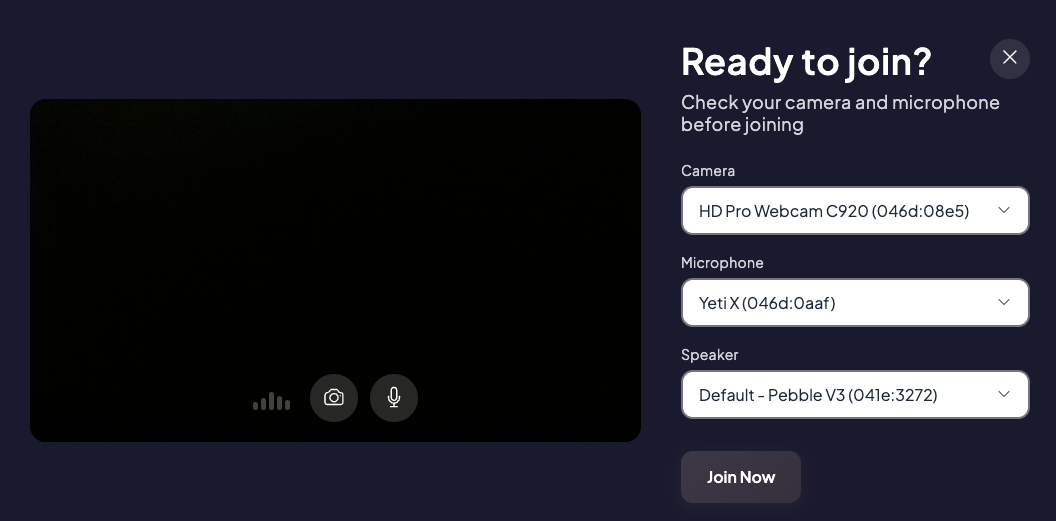
Pick your Camera, Microphone and Speaker, check the preview and the level meter, then click Join Now.
Browser permissions
The first time, your browser asks for access to the camera and the microphone. If you refuse, the lobby shows Camera/microphone access was denied: re-enable it in the browser's site settings and reload the page.
You can test your equipment outside of any consultation from My Profile > System Test.
The in-call controls
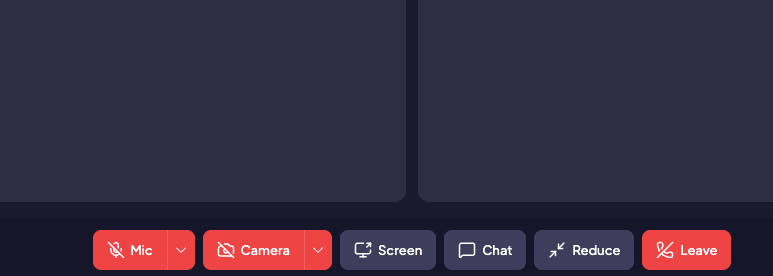
| Control | What it does |
|---|---|
| Mic | Mute / unmute. The arrow next to it switches microphone |
| Camera | Turn the video on / off. The arrow switches camera |
| Background blur | Blur what is behind you, when your device supports it |
| Screen | Share your screen — see below |
| Record | Record the session, when your administrator enabled it |
| Participants | Panel listing everyone, to add or remove someone mid-call |
| Chat | Open the conversation panel, with an unread badge |
| Reduce | Shrink the call window to browse the platform without hanging up |
| Leave | Leave the call |
Participants appear as tiles; someone with their camera off shows as Camera off, and a muted microphone is marked on their tile. As a moderator you can mute a noisy participant from their tile — they have to unmute themselves again.
Share your screen
- Click Screen
- Your browser asks what to share: a tab, a window or the entire screen. Pick it and click Share
- The shared content appears in the call, framed, and labelled Your screen
- Click Screen again, or the browser's Stop sharing banner, to end it
System permissions
On macOS and Windows, screen sharing may also require you to authorise your browser in the operating system's privacy settings. Grant it once, then restart the browser.
Chat during the call
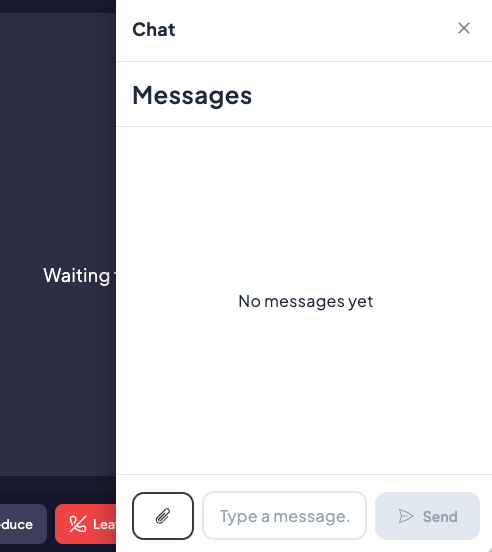
Chat opens the follow-up conversation next to the video: the same history, the same attachments, before, during and after the call. Anything sent here is still there once the call is over.
The chat is only available for participants who have Can see the consultation messages.
Recording and transcription
When your administrator has enabled them:
- Record starts and stops the session recording. The file is posted in the follow-up chat shortly after you stop it.
- Captions turns on live transcription. The transcript is posted in the chat in the same way.
Warning
Recording and transcription are regulated by your local rules. Inform every participant and get their consent before you start.
Leave the call
Click Leave. The call ends once everyone has left; anyone still in the room stays connected.
If you close the browser tab while still in a call, the platform asks you to confirm — leaving the page disconnects you.