Managing a Follow-up
Find your follow-up
Go to Follow-ups / Consultations. Three tabs split your files:
| Tab | Contents |
|---|---|
| Scheduled | Open follow-ups with an upcoming appointment |
| To handle | Open follow-ups with no upcoming appointment — waiting on you |
| Closed | Finished files, read-only |
Use the search box, or Advanced filters to narrow by beneficiary, creator, owning practitioner or group. Click a row to open it.
The follow-up page
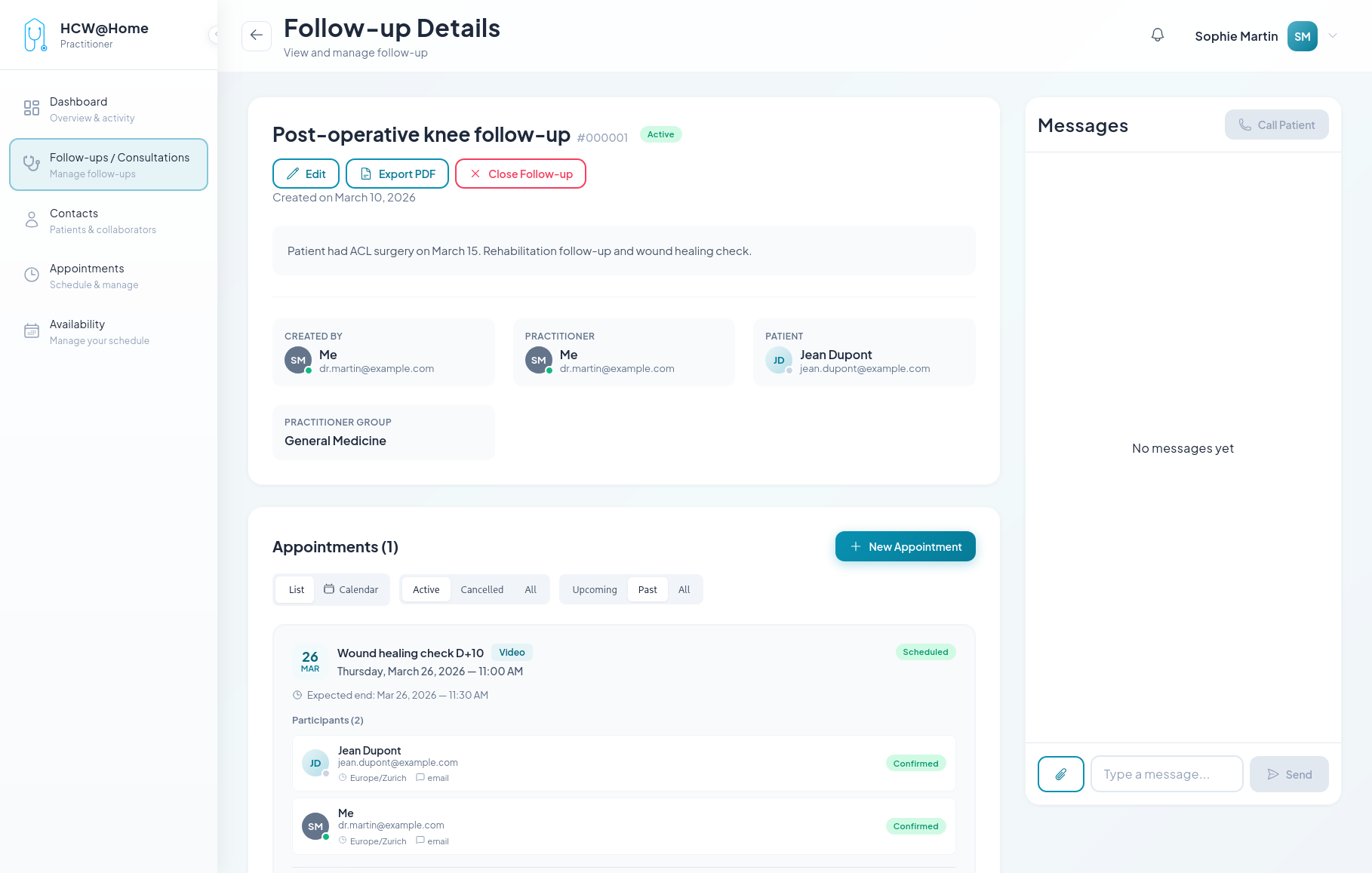
The page is built from three areas.
Header and summary
The title, the follow-up number, the status badge and three actions:
- Edit — change the title, description, beneficiary, practitioner, group and permissions
- Export PDF — download the file: details, appointments, chat history
- Close Follow-up — see Closing a Follow-up
Below, the summary cards recall who created the file, which practitioner owns it, who the beneficiary is and which practitioner group it belongs to.
Appointments
Every appointment attached to the follow-up, with its date, type, status and participants. The List / Calendar toggle changes the layout, and the Upcoming / Past / All filter narrows the list.
+ New Appointment adds another meeting to the same follow-up — a check-up two weeks later, for instance — reusing the same chat and the same documents.
On each appointment you can:
- Send — on a Draft appointment, send the invitations to the participants
- Join — enter the video room. The button becomes active shortly before the start time (10 minutes by default) and stays available for a while after the expected end, so a dropped call can be resumed. Too early, the platform tells you at what time you will be able to join.
- More actions (⋯) — Edit the date, the type or the participants, mark the appointment Completed or No show by hand, or Cancel it. Cancelling notifies the participants.
Participants and invitation links
Each participant shows their contact channel, their timezone, their language and their status: Invited, Confirmed, Arrived, Cancelled.
Participants invited with a link — no email, no SMS — display a Copy access link button. Click it, then send the link through your own channel.
A personal link
Each link signs its holder into the application as that participant. Send it to that person only. Links have a limited lifetime — the expiry date is shown next to the link, and you can generate a fresh one at any time.
Messages
The right-hand panel is the follow-up chat. It is available as soon as the file exists, so you can prepare the consultation, and it stays available afterwards.
- Type in Type a message… and click Send
- Use the paperclip to attach a document, a photo or a report. The maximum size is set by your administrator (10 MB by default)
- Files are scanned for viruses before they are made available
- Messages can be edited or deleted; participants see that the message was edited or removed
Only participants with Can see the consultation messages — and the beneficiary, unless the chat was disabled for them — can read this conversation.
Direct call
Call Patient, at the top of the message panel, rings the beneficiary right away without scheduling anything. They receive an incoming call notification and can Accept or Decline.