Appointments and Calendar
The Calendar menu shows everything scheduled: appointments, reminders and bookable slots.
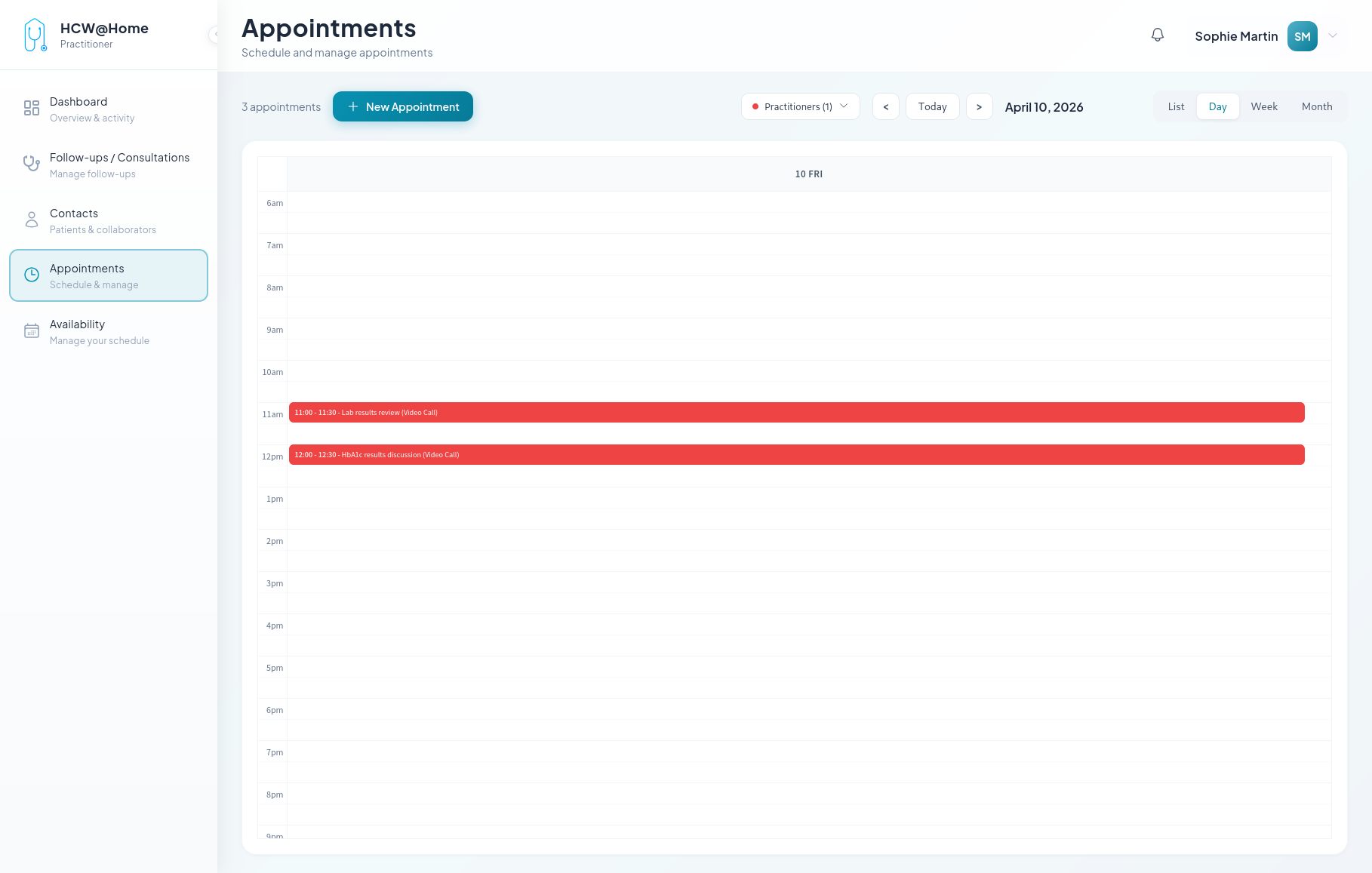
Change the view
The List, Day, Week and Month buttons switch layouts. Today
and the < > arrows move through time.
- List — three sections one after the other: appointments, reminders and bookable slots, each with its own count
- Day / Week / Month — the classic calendar grid. Hovering an entry shows its details: type, participants, related follow-up
The Practitioners filter overlays a colleague's schedule onto yours — useful before proposing a slot on their behalf.
Create from the calendar
+ New Appointment creates an appointment directly. The small arrow next to it opens the other creation actions:
- New Appointment
- New Reminder
- New bookable slot
Prefer creating from a follow-up
An appointment created here without a follow-up has no shared chat and no PDF export. The platform does attach a temporary follow-up to it so the appointment chat works, but that file closes on its own shortly after the meeting. For any real care relationship, create the appointment from within a follow-up.
Act on an appointment
Each entry in the list carries its own actions:
- Join — enter the video room, once the join window has opened
- Confirm Presence — confirm your attendance when you are asked to
- Mark as completed / Mark as no show — override the automatic outcome on a past appointment
- the Consultation #… link — jump to the related follow-up, where you can edit or cancel the appointment
Reminders
A reminder sends a message to a contact at a chosen date and time — no meeting, no video room. Typical uses: a medication reminder, a lab test to book, a check-in.
- + New Appointment > New Reminder
- Pick the Recipient, write a Title and a Description
- Set the Date and Time
- For a repeating reminder, tick Recurring reminder and set the interval (every n days, weeks or months) and the number of occurrences
At the scheduled moment the contact receives it by SMS or email, depending on their configured channel. Reminders can be edited or deleted from the calendar.
Automatic reminders
Appointment participants also receive reminders without you doing anything: one well in advance (24 hours by default) and one just before the start (10 minutes by default). Your administrator sets these delays.
Depending on the configuration, participants may also be asked to confirm their presence; their answer shows up on the participant list as Confirmed, Pending or Declined.
Bookable slots
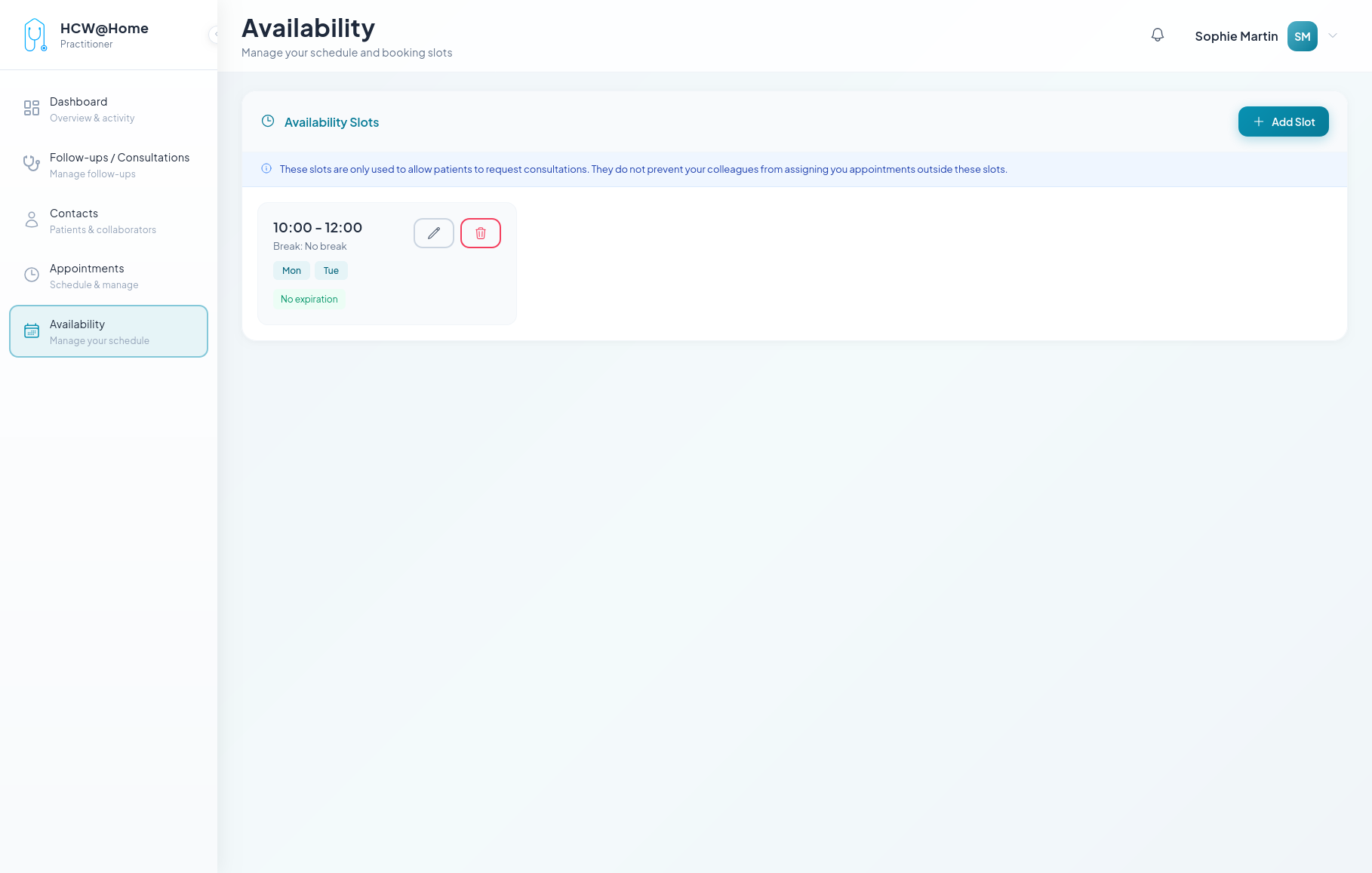
A bookable slot declares a window during which patients may request a consultation with you.
- Open the arrow next to + New Appointment and choose New bookable slot
- Set the Start Time and End Time
- Optionally set a Break Start and Break End
- Tick the Working Days the slot applies to
- Optionally set a Valid Until date — leave it empty for a permanent slot
Your slots are listed in the List view, under the appointments and the reminders, and can be edited or deleted from there.
Note
These slots only drive patient-initiated requests. They do not block your calendar, and they do not stop a colleague from booking you outside of them.