Navigating the Platform
The side menu
| Menu | What you find there |
|---|---|
| Dashboard | Home screen: your next appointments and the follow-ups waiting for you |
| Follow-ups | All your follow-ups, split into Scheduled, To handle and Closed |
| Calendar | Appointments, reminders and bookable slots, in list or day/week/month view |
| Contacts | Your patients and collaborators, split into Patients, Practitioners and All |
The menu can be collapsed with the arrow next to the logo, to give more room to the content.
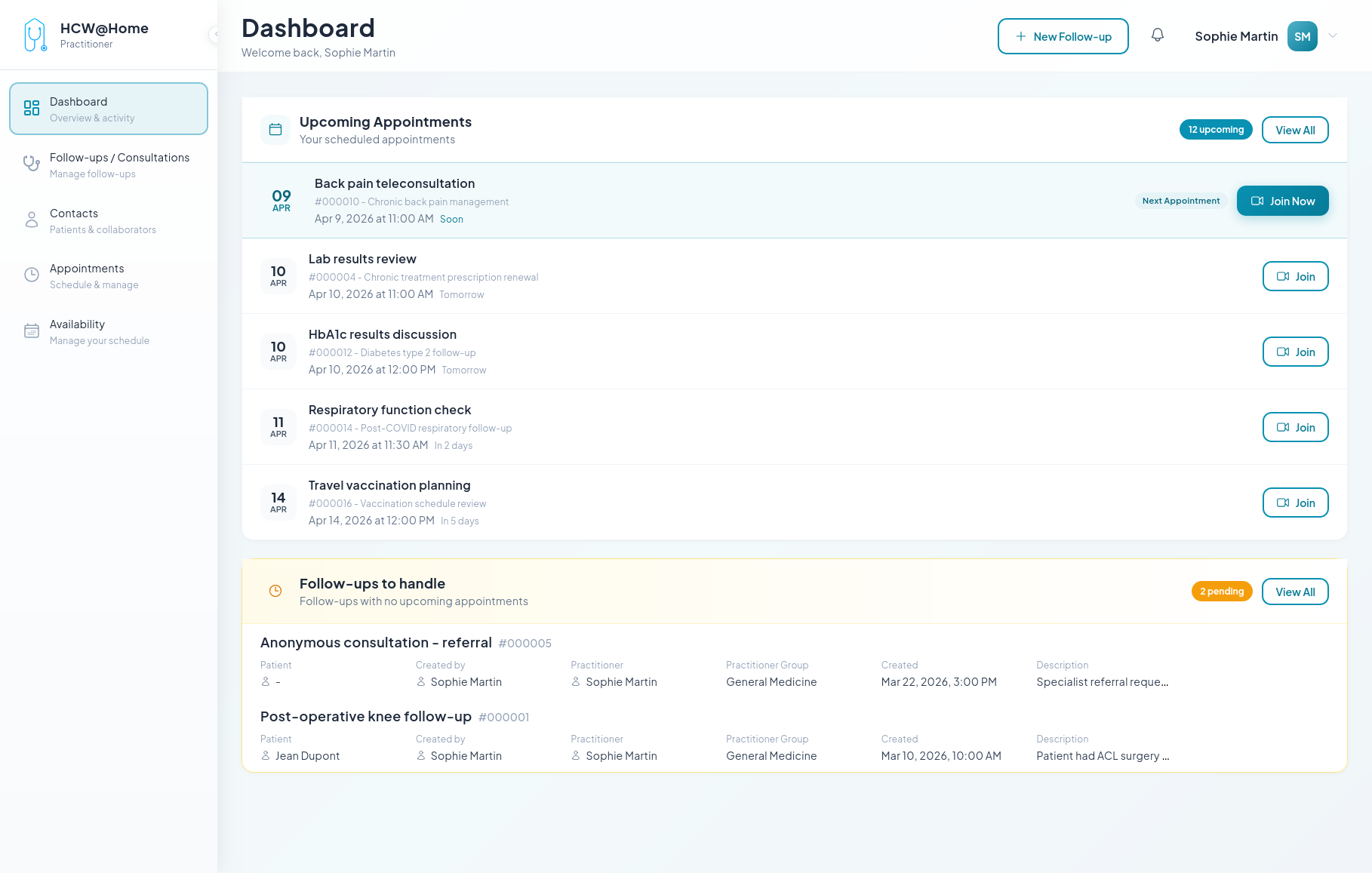
The dashboard
Two blocks make up the home screen:
- Upcoming Appointments — your scheduled appointments, most imminent first. The Join button appears on each one; the next appointment is highlighted with Join Now when its start time approaches.
- Follow-ups to handle — open follow-ups with no upcoming appointment. Use it as a to-do list: either schedule the next appointment, or close the file.
The header
- + New Follow-up — creates a follow-up from anywhere in the application
- Notifications (bell) — new messages, appointment changes, incoming calls. Mark all read clears the badge
- the question-mark button — replays the getting-started guide
- Your name — opens the menu with My Profile and Sign out
Statuses at a glance
Follow-ups and appointments both carry a status badge.
| Object | Status | Meaning |
|---|---|---|
| Follow-up | Active | Open — chat and appointments are available |
| Follow-up | To handle | Open but with no upcoming appointment |
| Follow-up | Closed | Finished; read-only, and subject to the retention delay |
| Appointment | Draft | Created but not sent to participants |
| Appointment | Scheduled | Confirmed, invitations sent |
| Appointment | Completed | The meeting took place |
| Appointment | No show | Nobody, or not enough participants, joined |
| Appointment | Cancelled | Called off; participants were notified |
Completed and no-show are set automatically after online appointments, unless your administrator disabled that behaviour. You can always override them by hand from the appointment's More actions menu.